2FA Setup Instructions
What is Two-Factor Authentication (2FA)?
Two-Factor Authentication (2FA) is a method of verifying a user’s online identity using two layers of authentication. To protect traders’ information from unauthorized access, an additional verification step is required besides the account login credentials and password.
As Rakuten Securities Bullion Hong Kong places great importance on information security, users are required to complete 2FA when accessing the Rakuten MT4 Account.
Our Two-Factor Authentication (2FA) Method
MetaTrader 4 DESKTOP
One-Time Password (OTP) is used as a temporary security code and that can only be used once. Each time you log in to the Rakuten MT4 Account, a verification code will be generated through MT4 mobile terminals on iPhone or Android.
MetaTrader 4 MOBILE
Lock Screen Function is used to provide additional level of security for your Rakuten MT4 account. Two-factor authentication for mobile terminal is conducted through your PIN and the master password for your Rakuten MT4 account.
How to Enable One-Time Password (OTP)?
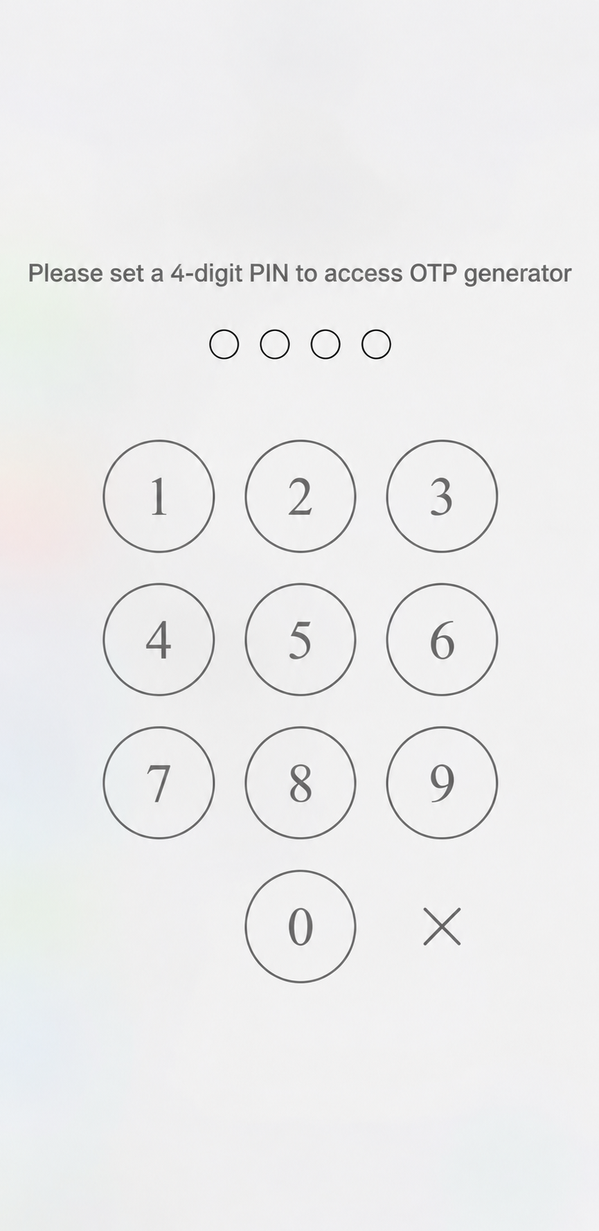
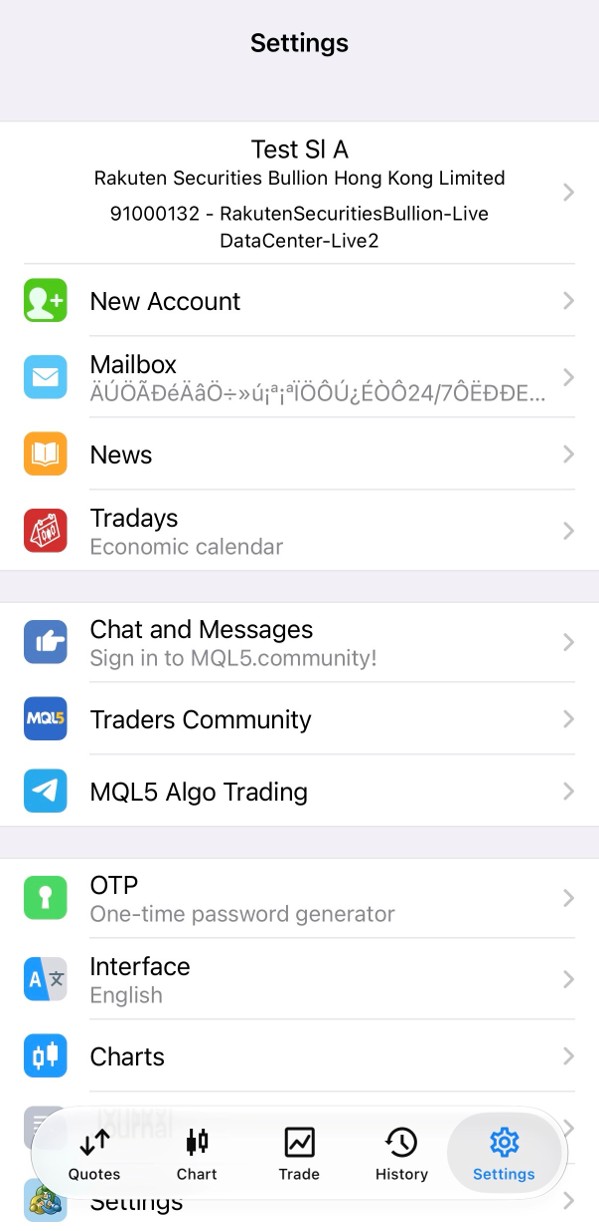
To start using one-time passwords, you are required to link your Rakuten MT4 account with the password generator via the mobile terminal. Please go to Settings of the MT4 mobile app and select OTP. For security reasons, you will need to set a 4-digit password when you first open this section. The password must be entered every time you access the password generator.
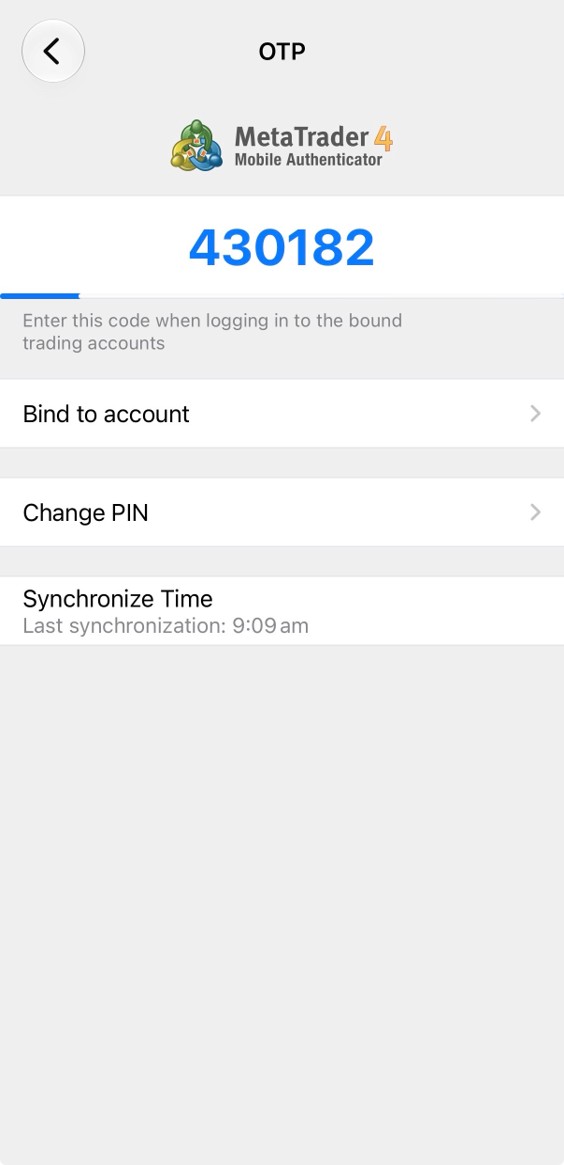
Please select “Bind to account” when you see the screen below:
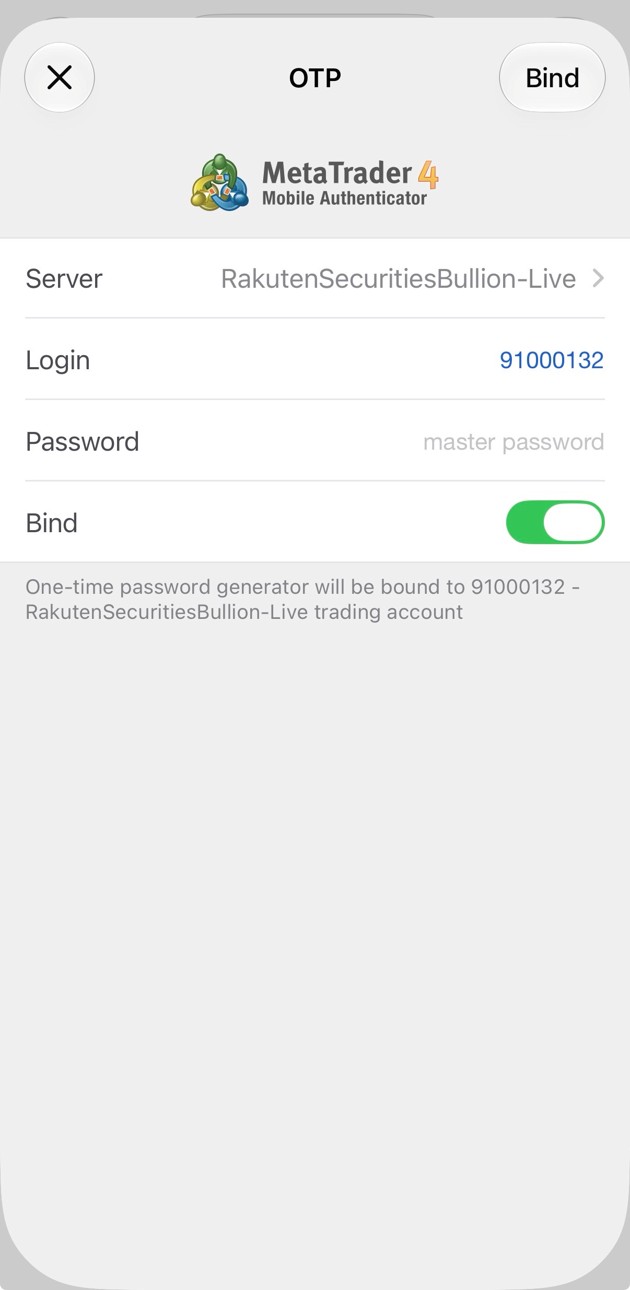
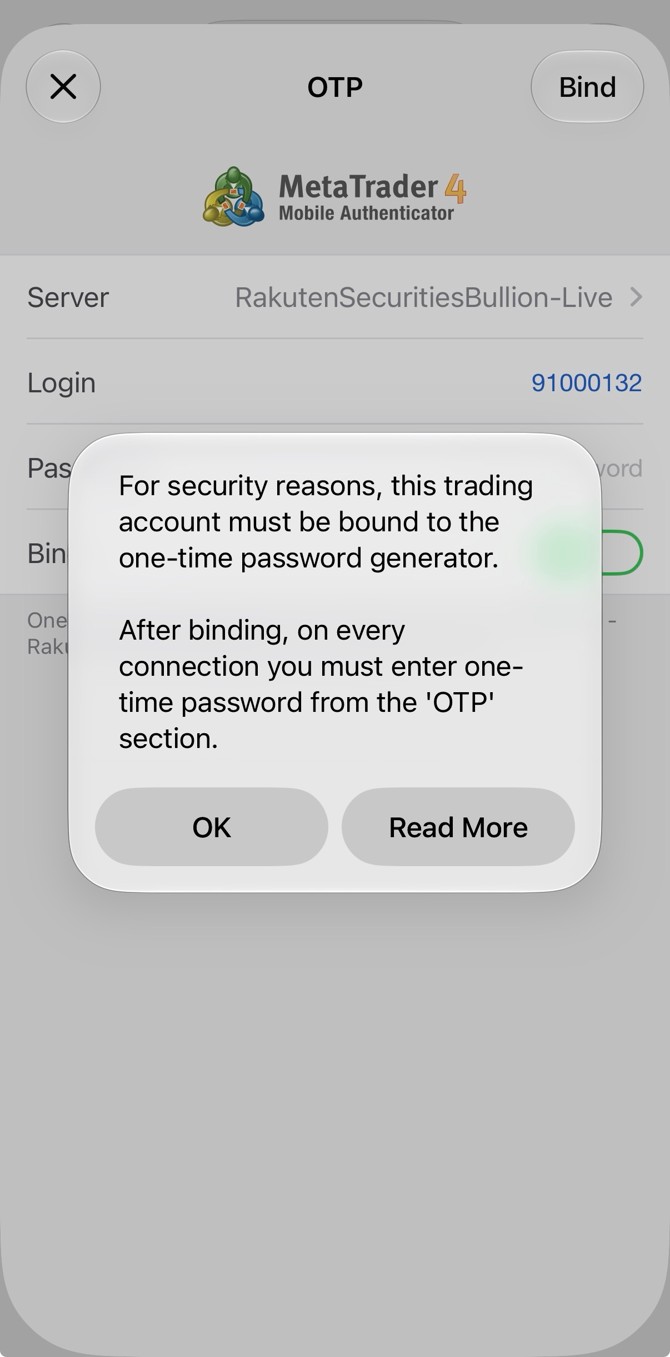
Next, select the server name RakutenSecuritiesBullion-Live, and enter your account number and personal password. The “Bind” command must be kept enabled
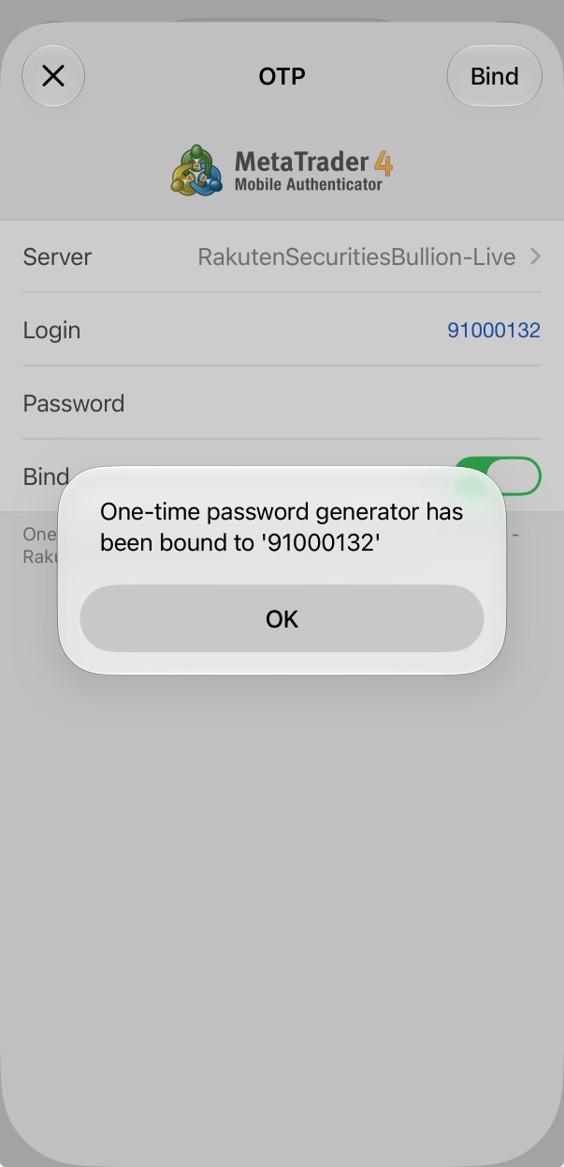
After you tap the “Bind” button located in the upper part of the window, your Rakuten MT4 account will be bound to the OTP generator, and an appropriate message will appear.
Please be reminded the system will require you to bind your account before logging in. If you did not do so, you will receive the following system message:
You can bind multiple accounts to the generator.
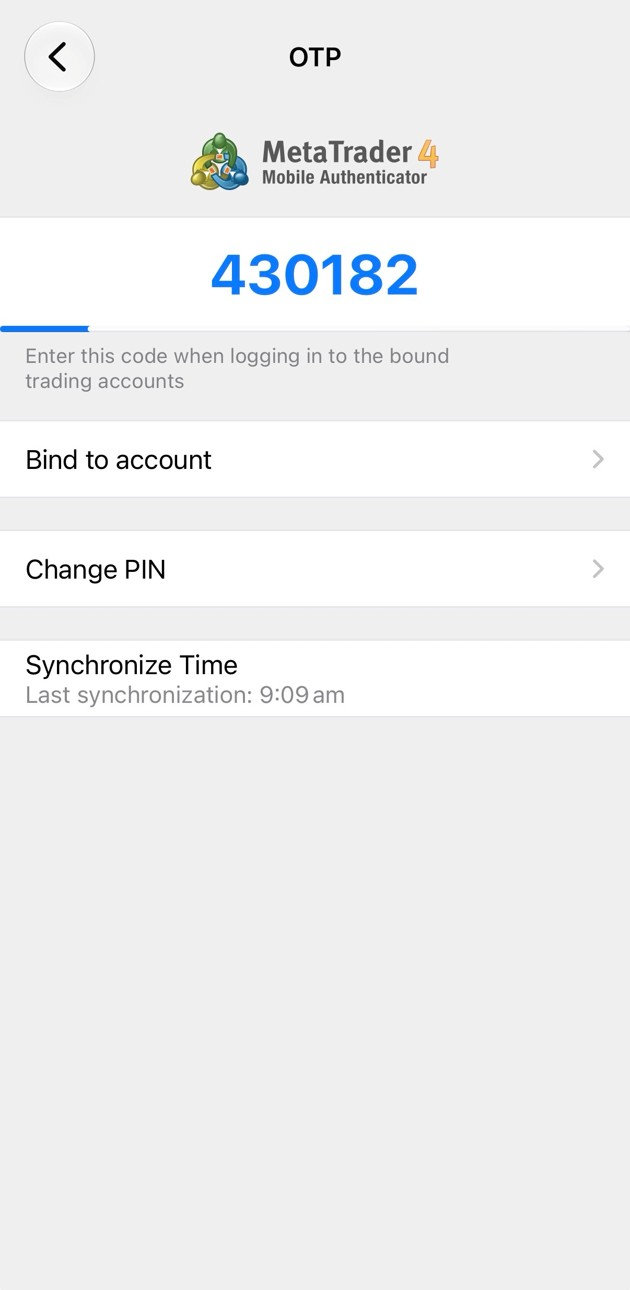
The one-time password is displayed at the top of the OTP section. The blue bar underneath visualizes the password lifetime. Once the password expires, a new one-time password will be generated automatically.
Additional Commands:
• Change PIN – change the generator password.
• Synchronize Time – synchronize the time of the mobile device with the reference server. Accuracy requirement is connected with the fact that the one-time password is bound with the current time interval, and this time should be the same on the client terminal and the server side.

• Change PIN – change the generator password.
• Synchronize Time – synchronize the time of the mobile device with the reference server. Accuracy requirement is connected with the fact that the one-time password is bound with the current time interval, and this time should be the same on the client terminal and the server side.
How to Use OTP in the Desktop Terminal
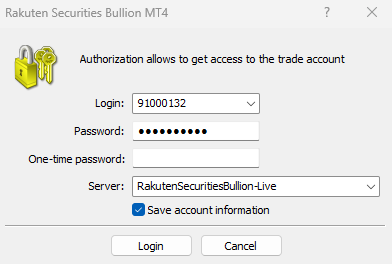
After binding your Rakuten MT4 account to the generator, a one-time password will be additionally requested when connecting to it from the desktop terminal:
How to activate two-factor authentication in the Mobile Terminal
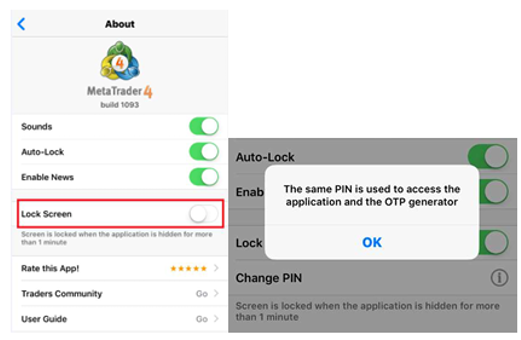
Two-factor authentication for mobile terminal is conducted through your PIN and the master password for your Rakuten MT4 account. To activate, please follow the steps: Please go to “Setting”, “About” and check the button for “Lock Screen” on your mobile application. The PIN is the same as your OTP generator pin.
To enhance the security of your online trading account, enabling Two-Factor Authentication (2FA) on your Mobile Trading Terminal is mandatory.